RTSP Streams
CueCam Generates two RTSP Streams when enabled (see Settings)
We strongly recommend disabling the RTSP server if not in use, especially on older devices. Enabling RTSP uses considerably more device CPU and, therefore, battery. So turn it off if not in use.
You will need to know the IP address of your iPhone/iPad. In most cases this will be shown in the Settings.
/status
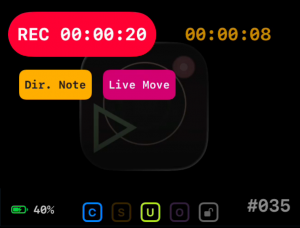
This is designed for incorporation in a Magic Sheet. It shows the current status of CueCam (the same information as you'll see on the app itself) to provide a confidence indicator including recording status, markers, stopwatch, and status indicators (Clean Mode, Snapshots, Uploads etc) and battery level.
The /status endpoint is a low resolution (640×480) feed that uses very little bandwidth.
/video
The /video endpoint is (depending on whether or not RTSP Overlays are enabled in Settings) either a clean video feed which can be used for monitoring purposes (although we would not recommend connecting many devices simultaneously to CueCam) or a mirror of what is being recorded to the video file, complete with overlays.
RTSP Streams have some latency. Whilst this can be as short as a few frames, it can also be up to a second or so in some cases therefore we do not recommend relying on the stopwatch or timestamp displayed on these. The RTSP video stream is absolutely not suitable for any sort of show-critical or safety-critical remote viewing purposes
RTSP Live Video stream is not available when 4K Video Recording is in progress.
Auto-Add Streams to Eos
CueCam supports automatically configuring your Eos showfile to receive its RTSP Streams. Configuring RTSP in Eos is a bit unfamiliar for many users, so there is the option to automatically add Video Streams to your Eos showfile in positions 91 and 92,
CueCam will also keep these updated if it's IP address changes (for example if your iPhone uses DHCP and your lease expires between shows when you're away from the venue.
This modifies your showfile automatically, if you already use Video Streams 91 and 92 for any reason you should not use this feature as it will overwrite your existing configuration.
- CueCam will only ever touch Video Streams 91 and 92, these numbers were picked because they're unlikely to be in use already and are 'out of the way'
- There is a prominent warning when enabling this option (and of course it's disabled by default!)
- If you disable RTSP Server for any reason, and then later re-enable it, this function will not be automatically re-enabled.
- This option is only available if there is an established connection to Eos.
When enabled, you can simply select the CueCam streams from the dropdown in the Video Stream (Tab 41) or Magic Sheet Video Element.
if you are using a previous version of Eos with NDI support, do not use this function. CueCam only supports RTSP for video. Early Eos versions with NDI support do not support RTSP.