Locking
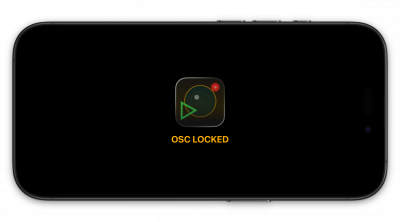 It is possible to lock CueCam from unauthorised interference (for example if it is located in a front of house area) or even accidental knocking in the booth.
Lock and Unlock can only be performed using OSC Commands
When locked, you cannot adjust the settings of CueCam from the iPad or iPhone, nor start or stop recordings or take photos. The display backlight is dimmed and displays a message indicating the device is locked.
Auto-Unlock
If CueCam loses connection to ETC Eos a 20s timer will start (the countdown will be shown on screen), after which it will unlock automatically.
Single App Mode and Guided Access
Apple offers two ways to further protect or lock down an iOS device which may be of interest to those using CueCam in a public space;
Guided Access Mode
Guided Access is available on any iOS device. It's an Accessibility feature that can be used to offer some limited security.
First you must set up Guided Access on your device, you need only do this one;
- Go to
Settings→Accessibility - Scroll to Guided Access and turn it *On*
- Tap
Passcode Settingsand thenSet Guided Access Passcode - Choose a passcode and enter it twice.
Once configured, you can start a guided access session;
- Load CueCam
- Press the side (lock) button three times in quick succession
- If you have multiple Accessibility Shortcuts enabled you will need to tap Guided Access on the menu that appears
- Tap Session Settings
- From here you can disable the lock button, volume buttons, rotation, and touch as required
- You can also circle specific areas of the screen to disable (there is no need to do this if you're using CueCam's locked view
- In most cases you can just enabled Guided Access by tapping *Start* in the Top Right of the screen.
The device is now locked to CueCam. To exit Guided Access tap the lock button three times quickly again, and enter your PIN if requested (it can also use FaceID) then tap End to return to normal operation.
Guided Access is *not* equivalent to Single App mode. It is possible to reboot the iPhone when in Guided Access and return to normal operation and have full access to the device.
Single App Mode
A better, more secure, option is Single App Mode. Setting this up is beyond the scope of CueCam's guide but you can use any one of the many MDM (Mobile Device Management) platforms available, many of which offer a free trial.
You can also enable Single App Mode with the free Apple Configurator available from Apple directly.
For more information see https://support.apple.com/en-gb/guide/apple-configurator-mac/cadbf9c172/mac