Table of Contents
Markers
Markers are the main reason we built CueCam!
The ability to quickly annotate a clip is useful and the markers are designed so that they are easy to identify when scrubbing through footage. You can also configure Chapter Markers to be created in the video when a marker is added.
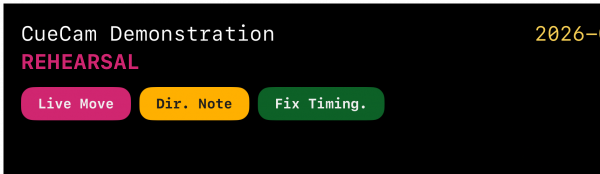
Adding Markers
You can add markers in one of two ways;
- Tap Markers (on the device itself, or via your Apple Watch)
- OSC Markers
The real power of markers comes from OSC and being able to trigger them from the desk using OSC Commands
Everyone's workflow is different, and in beta testing we've heard so many ways people use these that are different to how I originally envisioned them, so please let us know how you find them useful.
Tap Markers
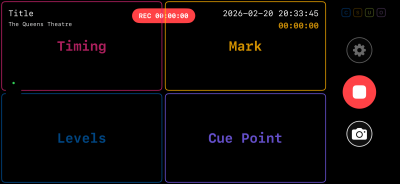 Tap Markers can be configured within Settings. Once configured, the preview screen is split into four quadrants when recording. Tapping any of those areas will add the appropriate marker on the video at that point. You can also set the same markers using an Apple Watch
Adding OSC Markers from Eos
Macros
I use Macros and Direct Selects for most of my annotations. The following Macros define three markers; Live Move (in Magenta), Directors Note (in Cyan), and Fix Timing (in Orange)

Magic Sheets
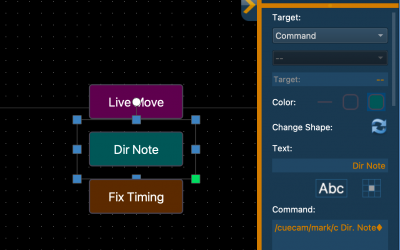
You can fire Macros from a Magic Sheet, you can also directly set a Command target on a Magic Sheet button with the text in the command /cuecam/mark/c Dir. Note♦ (where ♦ is the Enter command)
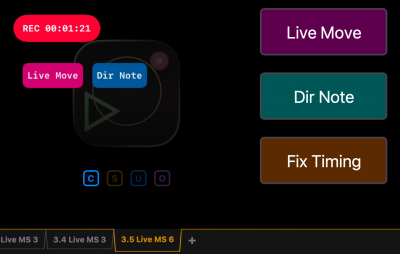
Combined with the RTSP Streams, this provides feedback of markers as they are added in realtime.
Colours
There are 10 colours available;
█ Red, █ Magenta, █ Orange, █ Amber, █ Green, █ Teal, █ Cyan, █ Blue, █ Violet
These can be specified in the OSC Commands as either the full colour name (e.g. /cuecam/marker/magenta or the first letter of the colour /cuecam/marker/m)
Learn more about colours in CueCam