Table of Contents
User Interface
The CueCam user interface broadly represents what's being recorded to the video.
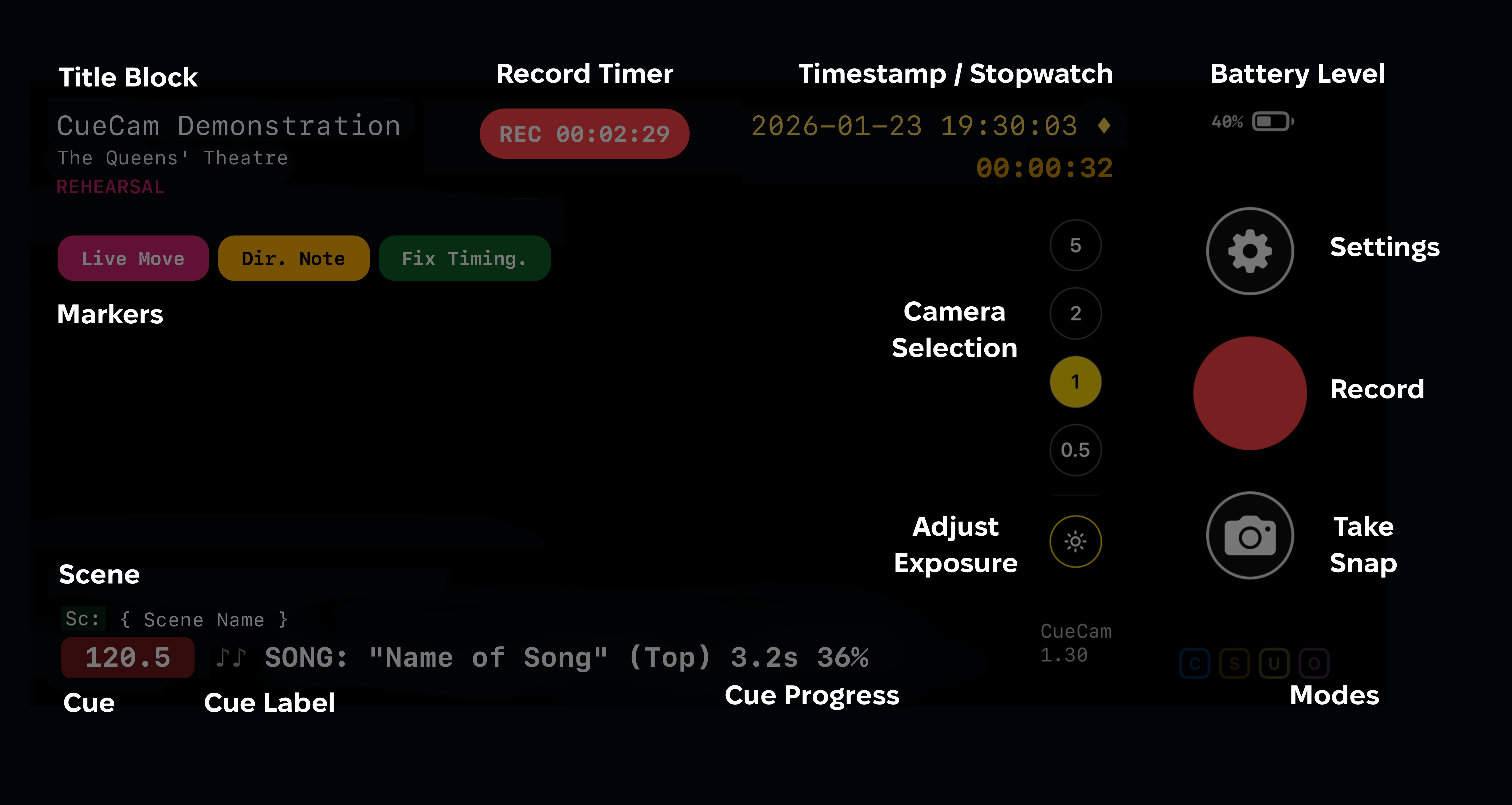
The CueCam UI will appear slightly different on iPad and iPhone SE, but the functionality is identical. On iPhone SE the Timestamp/Stopwatch/Timecode are not displayed when not recording, but will be captured on recorded images and video as usual.
Controls
Camera Selection
Select from the available cameras (on iPhone), will not be displayed on devices with a single camera. Not available when recording. There is also an icon to adjust exposure and a # icon which will show an alignment guide.
The familiar camera zoom gestures work on the preview window when not recording;
- Two finger scroll adjusts exposure
- Pinch to zoom zooms the image digitally
Additionally, if Tap Markers are disabled, you can use the two finger scroll to adjust exposure during recordings.
Settings
Access the Settings menu. Not available when recording.
Record
Start and Stop Video Recording
Take Snap
Take a photo of the current state (with overlaid data)
When Cue Snaps are enabled the photo icon will have an amber border, and you will see it flash periodically with each photograph taken automatically when a cue reaches 100%
Modes
Some active modes are shown in a simple colour-coded set of icons at the bottom of the screen. These are as follows;
| C | Clean Video Recording Enabled |
|---|---|
| U | Dropbox Upload Enabled |
| S | Cue Snaps Enabled |
| O | Reserved for Future Use |
Video Overlays
The user interface is designed to provide an indication of what is being recorded, it is not a true wysisyg representation of the final output. This is by design as the video file is a different resolution from the displayed preview, also true synchronisation is prioritised for the recorded video, not the preview.
Title Block
The Title and Tag are set in Settings or via OSC Commands.
The Venue can be automatically filled based on your location data, or you can manually enter a venue name. Ideal for touring productions.
Record Timer
Show the duration of the current recording. If the recording was started by an OSC command it will show OSC | REC instead of simply REC (when started on the device itself). You can stop a recording started by OSC by pressing record/stop on the device.
Timestamp
If shown in white, the timestamp represents the time set on your iOS device. if shown in amber, with a ♦ marker, the timestamp is synchronised with your Eos console.
Stopwatch
If enabled, the OSC-controlled stopwatch is shown beneath the timestamp.
Markers
Markers triggered by OSC, on the device, or from your Apple Watch will appear in a row here. They are displayed for a period of five seconds from when they were added to the video and are easy to identify when scrubbing through footage later. At most five markers can be displayed at any one time.
You can also use CueCam Play or any video player that supports Chapter Markers to quickly navigate your recording by Markers placed during recordings.
Scene / Show File Name
This is the current Scene or Show File name from your Eos console (if enabled in Settings). Scenes are only taken from Cue List #1
Cue Number
The Cue Number is shown in keeping with how it is represented in the Eos console; a red background indicates a running cue. The amber background indicates the current state. Multiple Eos cue lists can be displayed.
If QLab is being used for lighting then this will show the QLab Cue Number of the current lighting cue.
Cue Name
The Cue Name is the Label of the cue from Eos (or QLab if using QLab for Lighting.
Cue Progress
When a cue is running the Cue Name has a suffix of the remaining duration in seconds, and the percentage complete.
If a cue has Follow or Hang set, this will also be shown after the current status in red as Fx.x or Hx.x as appropriate, where x.x is the remaining time in seconds.
Command Line
When enabled, shows your current Eos command line (ideal for educational use, or tracking manual changes)