Table of Contents
QLab Integration
CueCam has been tested with QLab 5 and later only. Other versions may work but have not been supported. QLab 5.6 onwards also includes support to control CueCam natively *from* QLab itself.
Within the QLab Settings in CueCam you can enable a number of features that may suit how you use QLab;
- Use QLab for Lighting Cues (see QLab Lighting for more info)
- Suppress Children of a Group
- Suppress Cues with no Cue Number
These should be self-explanatory, and have been developed based on feedback from QLab users during our early testing.
Configuring QLab
You will need to enable OSC Access in Settings > Network within QLab
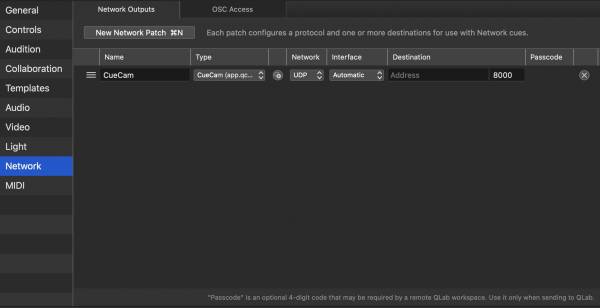
Control of CueCam from QLab
From QLab 5.6 on, you can add CueCam as a network device in QLab like any other. When adding a new device, you can select the app from the video sub section.

Thereafter you can create network cues with CueCam as the device, and much of the the OSC functionality is available as a drop-down list, meaning you don't need to remember specific OSC commands to control your CueCam.
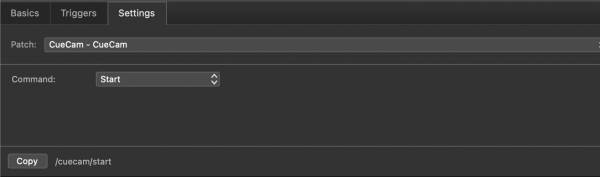
Supported Features and Limitations
QLab allows for exceptionally complex Workspaces with many layers of groups, as well as external scripting functions. We cannot test CueCam exhaustively with every possible combination, and QLab is new for version 2.0 so please do give us feedback of anything that doesn't work as expected.
For every cue you run in QLab CueCam will show;
- The cue type and colour (that you selected in QLab)
- The cue number
- The cue name
- The current progress of the cue
- The time elapsed or remaining of each cue
Using QLab for Lighting
QLab can also be used for lighting, see QLab for Lighting
QLab® is a registered trademark of Figure53 Inc.
CueCam is not affiliated with or approved by Figure53 Inc.
The inclusion of the term QLab is used to indicate compatibility only.